
For a Google Meet interview, Interview Copilot can use the call tab's audio to turn spoken questions into guidance. In desktop Chrome or Edge, connect the actual Meet tab with tab audio enabled, then confirm the interviewer's question appears in the transcript.
There are two separate audio checks. Meet needs the microphone and speaker you intend to use for the conversation. Copilot needs the source carrying the other participant's voice. A moving microphone indicator in Meet proves your own microphone works; it does not prove the meeting audio is reaching Copilot.
Step 1: check your devices in Meet
Google documents a pre-join self-check for microphone, speaker and camera. Before joining, use the device choices below the preview tile to select the peripherals you intend to use. Speak to check the microphone indicator and run the speaker test to check playback. See Google's audio and video instructions.
Do this with your intended headphones connected. Then join a test call with a practice partner and confirm you can hear one another. Keep the test on the same computer and browser route you plan to use for the interview.
Step 2: prepare your Copilot session
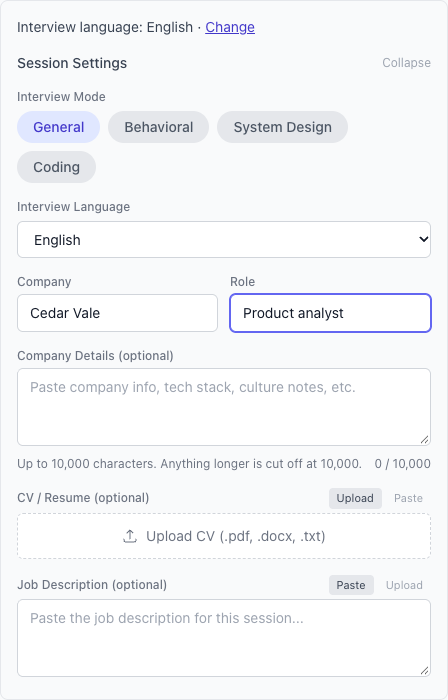
Open Interview Copilot in another tab and sign in. Choose the relevant interview mode and supply the role, résumé and job description you want considered. Use redacted documents and factual notes you can defend in a follow-up.
The published Free plan includes 20 Copilot minutes and 20 Coach minutes every month. On Free, Copilot starts with your microphone. During the session, Share Interviewer Audio adds your call tab in Chrome or Edge on a computer.
Step 3: connect the running Meet tab
- Keep the test meeting running in desktop Chrome or Edge and confirm the other participant's voice is audible.
- In Web Copilot, begin the interviewer-audio connection.
- In the browser's source chooser, select the tab containing the active Meet conversation. Select the audio option for that tab.
- Complete the connection and return to the conversation. Ask the other participant to say a complete question.
- Check Copilot's transcript for those words. Use a detail that distinguishes the current question from anything you said during setup.
Choose the running meeting, not a calendar invitation, the Copilot tab or another tab with a similar title. This is a source-selection exercise. The evidence you want is the other participant's sentence in the transcript.
Step 4: request and inspect an answer
Once the transcript contains the question, use Get Answer. Manual Get Answer is available on every plan; the Web Copilot walkthrough documents Space as the key. Basic and Intensive also include optional Auto Answer after a question ends.
Choose Cue me for short reminders, Structure it for an outline or Formulate my answer for full first-person wording. Inspect any personal claim before saying it. Context from your résumé and role can guide the response, but it does not prove an achievement or guarantee a correct answer.
Try a familiar question first so you can judge whether the content is useful. Then try a follow-up. A functioning transcript is only the first check; you also need guidance that addresses what was actually asked.
A wrong-tab diagnostic with two different sentences
This is a writer-created test, not a report of product behavior on a specific device.
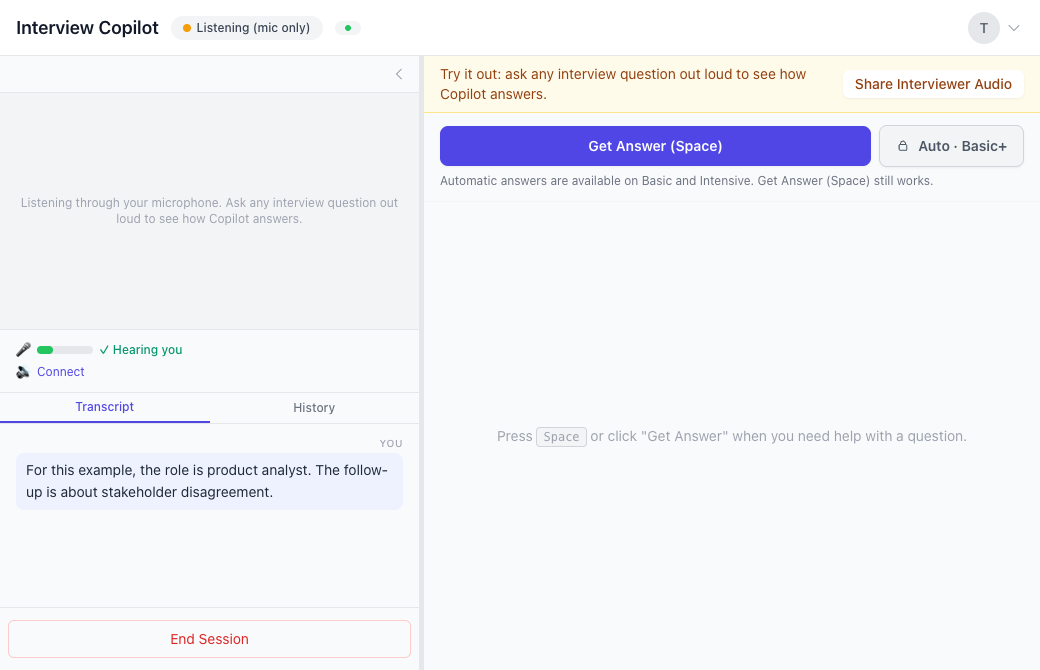
Ask your partner to say: “For this example, the role is product analyst.” Wait for that sentence in the transcript. Then ask them to say: “The follow-up is about stakeholder disagreement.” Check for the second sentence before generating an answer.
If only words from your own setup appear, revisit the selected source. If neither sentence appears, check whether the meeting itself is audible and whether you connected the correct tab with audio. If the sentences appear but a name is wrong, separate that transcription error from a complete absence of call audio.
The different sentences make it easier to see whether you are inspecting fresh call input or old text. After changing a device or reconnecting a source, repeat the check. Do not keep requesting answers from a transcript that lacks the question.
If you also use the Mac app
For when to use browser-tab audio or Prep Notes and which Macs are supported, see browser and Mac audio setup.
For Google Meet in a browser, the Mac download page points to the tab-audio route above, in desktop Chrome or Edge. Follow that route for Meet, and do not mix its source-selection steps with native app setup.
Frequently asked questions
Does Meet's microphone test prove Copilot can hear the interview?
No. It checks your microphone for the call. Confirm another participant's spoken question in Copilot's transcript to check the separate call-audio connection.
Which tab should I select?
Select the tab containing the active Meet conversation and enable its audio. The invitation or calendar tab is not the running call.
Can I use Safari or Firefox for direct Web Copilot call capture?
The documented direct call-audio path uses desktop Chrome or Edge. The evaluation guide says Safari and Firefox do not support that capture path in Web Copilot.
Can I practise without another participant?
Yes. You can ask a question aloud through your microphone to check the guidance. Coach provides separate spoken practice and feedback. Neither exercise establishes a working Meet-tab connection.
How much is free?
Free includes 20 Copilot minutes and 20 Coach minutes each month. On Free, Copilot starts with your microphone. During the session, Share Interviewer Audio adds your call tab in Chrome or Edge on a computer.
Try Copilot free. Read live interview answers or AI interview practice for the next exercise.