
For a Zoom interview, Interview Copilot can turn spoken questions into guidance through a supported browser-tab or system-audio connection. Choose the route that matches where Zoom is running, then verify another speaker's question in the transcript before requesting an answer.
The starting decision is whether you will join Zoom in a browser or use the Zoom Workplace app. Opening a browser beside the desktop app does not turn the desktop call into a browser call. The source you connect to Copilot must match the source carrying the interviewer's audio.
Before you start
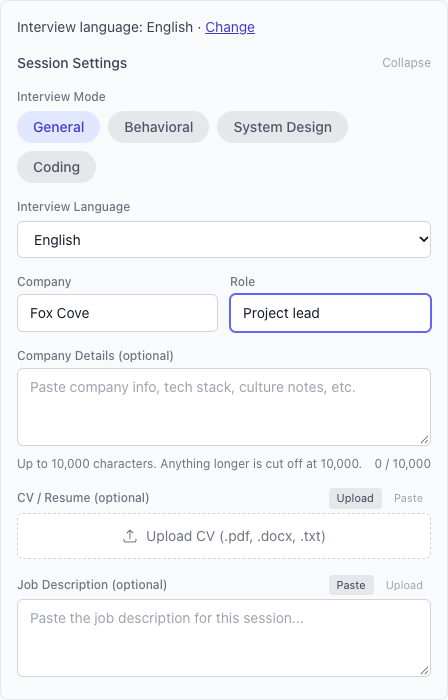
Use the computer, headphones and network you intend to use for the interview. Check the interview's rules on assistance. Open Interview Copilot, sign in and add the role and any redacted résumé or job context you want considered.
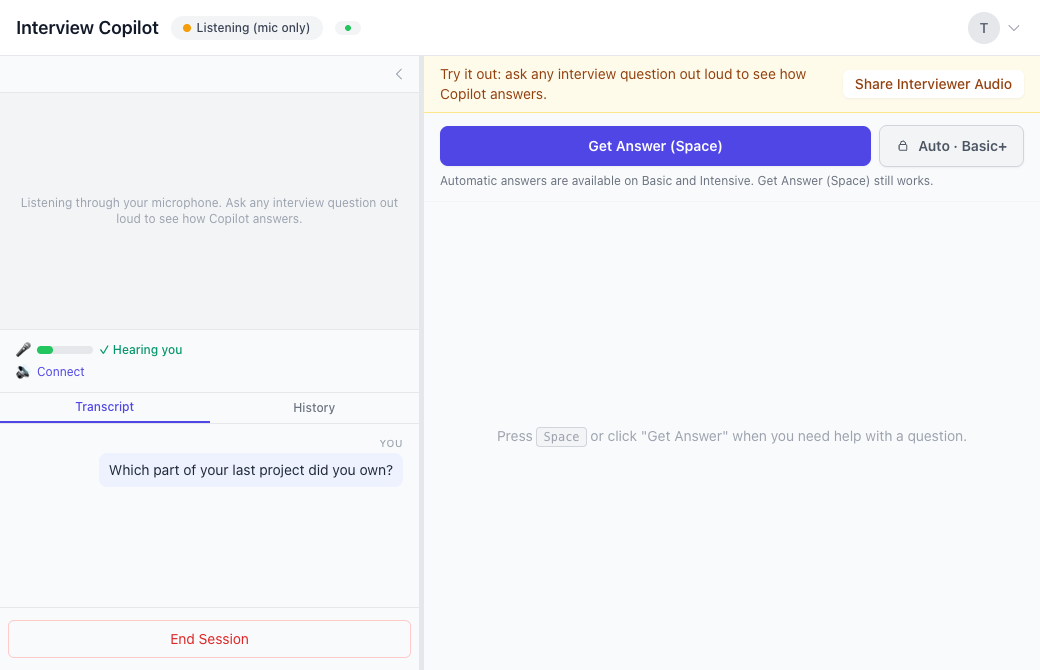
The Free plan includes 20 Copilot minutes and 20 Coach minutes each month. A quick first test can use your microphone: ask a question aloud and inspect the guidance. On Free, Copilot starts with your microphone. During the session, Share Interviewer Audio adds your call tab in Chrome or Edge on a computer.
Route 1: Zoom is running in a browser tab
Zoom documents a “Join from your browser” option, but the host must enable its browser-join link. Check that option before planning your setup around it. See Zoom's joining instructions.
- Join the Zoom test call in desktop Chrome or Edge, using the browser route when available. Confirm you can hear the other participant.
- Open Web Copilot in a separate tab. Start the session setup for your chosen interview mode and context.
- In the browser's source chooser, select the tab containing the Zoom call and enable tab audio.
- Return to the call and ask the other participant to say a short question. Check that those words arrive in Copilot's transcript.
- Wait for the complete question, then use Get Answer. Check the suggestion against the question and your factual context.
The documented tab-audio path is desktop Chrome or Edge. Our evaluation guide says Safari and Firefox do not support direct call-audio capture in Web Copilot.
Route 2: Zoom is running in its desktop app
- Join the Zoom test call in the desktop app and verify the other participant's voice through your intended headphones.
- Open Web Copilot in Chrome and enter the session setup.
- Start the interviewer-audio connection. Select the entire-screen source with audio rather than an unrelated browser tab.
- Have the other participant ask a question and check the transcript. If no words arrive, return to the source and audio check before requesting guidance.
- Request an answer only after the transcript contains the question you intended to send.
Connecting a source to Copilot and presenting material to the interviewer are separate tasks. Rehearse each operation you expect to perform, and confirm that the call still works normally after you change sources or devices.
Route 3: use Prep Notes on a supported Mac
For browser-tab and desktop-call audio routes, Mac requirements and the Prep Notes shortcut, see browser and Mac audio setup.
A ninety-second Zoom rehearsal
Use this writer-created exercise after connecting audio. Ask a practice partner to say: “Which part of your last project did you own?” Wait for the whole question in the transcript and request a Cue me response.
Check three things separately: whether the words were captured, whether the guidance addresses personal ownership, and whether every detail is yours to defend. Ask the follow-up, “What did someone else own?” That catches a different problem from missing audio: a suggestion that blurs your responsibility with the team's.
Repeat after any change to the route you intend to use. Record whether you tested Zoom in the browser, Zoom Workplace with Chrome system audio, or Prep Notes. “Zoom worked” is too vague to help you reproduce the setup later.
Frequently asked questions
Can I use Interview Copilot with Zoom without installing Copilot?
Yes. Web Copilot runs in a browser. Use Zoom tab audio for a browser call or the documented Chrome entire-screen audio route for the native Zoom app.
What if Zoom does not show browser join?
Zoom says the host must enable its browser-join link. Use the call route available for that meeting and check the corresponding Copilot audio requirements; do not assume browser join will appear.
Why does Copilot hear me but miss the interviewer?
A working microphone establishes your own input. Check whether the Zoom tab or desktop-call system audio is connected, then test another speaker's question again.
Is a microphone test enough?
It can help you evaluate guidance on spoken questions. It does not prove that another participant's Zoom audio reaches Copilot. On Free, Copilot starts with your microphone. During the session, Share Interviewer Audio adds your call tab in Chrome or Edge on a computer.
Which answer control should I test?
Manual Get Answer is available on every plan. Basic and Intensive add optional Auto Answer. Test the control you intend to use, after confirming the transcript.
Try Copilot free. Continue with live answer formats or AI interview practice.