
To set up an AI interview assistant on a Mac, use Interview Copilot in a supported browser or install Prep Notes on an Apple silicon Mac running macOS 13 Ventura or later. Connect the audio route for your call, test your microphone and the other speaker separately, then arrange the Copilot window beside the interview so you can read both.
These are Interview Copilot's requirements, not a specification for every interview assistant. Check and follow the employer's rules on assistance before setting up a live session. A working microphone is only one part of the audio check.
Choose the route before installing anything
If your call runs in a browser tab, Web Copilot's documented call-audio route uses desktop Chrome or Edge with tab audio. Open Copilot in a separate tab beside the call. For Google Meet in a browser, the download page explicitly recommends connecting the Meet tab to Web Copilot.
For the Zoom or Microsoft Teams desktop app on a supported Mac, Prep Notes captures interviewer audio through macOS system audio with your permission. It includes a setup test tone. You can also use Web Copilot with Chrome's entire-screen audio on macOS 14.2 or later and Chrome 141 or later.
Opening Chrome does not move a separate desktop call into a browser tab. Select the route that actually carries the other person's voice. The Zoom guide walks through that distinction for Zoom.
System requirements you can check now
The live download page lists these requirements for Prep Notes:
- Apple silicon, M1 or later.
- macOS 13 Ventura or later.
- No Intel build.
- Your existing Interview Copilot account; the app uses the same plan and Copilot minutes.
Every plan includes the Mac app. Automatic answers require Basic or Intensive. The native Windows app is still in progress, with no published date.
For Web Copilot, check the browser and audio route rather than applying the Mac app's requirements. Browser call-tab audio uses desktop Chrome or Edge. Chrome entire-screen audio supports desktop call apps on Windows, or on macOS 14.2+ with Chrome 141+. These are separate routes with separate requirements.
The cited live pages do not publish minimum RAM, free disk space or a minimum connection speed. We cannot supply numerical requirements for those. An Intel Mac cannot run Prep Notes; assess the documented browser route separately rather than assuming the app and web requirements are interchangeable.
Install Prep Notes on a supported Mac
- Open the live Mac download page and check the chip and macOS requirements against your computer.
- Download the Mac installer. Open the
.dmg, drag Prep Notes to Applications and open it. - Sign in with your Interview Copilot account. You use the existing plan and Copilot allowance.
- Complete the audio setup and grant the system-audio permission it requests. Run the setup test tone.
- Join a test call and have another participant ask a short question. Check that the question reaches the transcript.
- Test Get Answer with Option–Space. The download page documents Shift–Command–Space as the fallback if another app uses that shortcut.
The test tone checks setup; the other speaker's question checks the call route you intend to use. Do both before relying on the connection. Keep Prep Notes beside the call, as the download page recommends.
Start in the browser and connect the interviewer
Open Web Copilot, sign in and add the role and any résumé or job context you want the guidance to use. The assistant guide describes the context and answer controls.
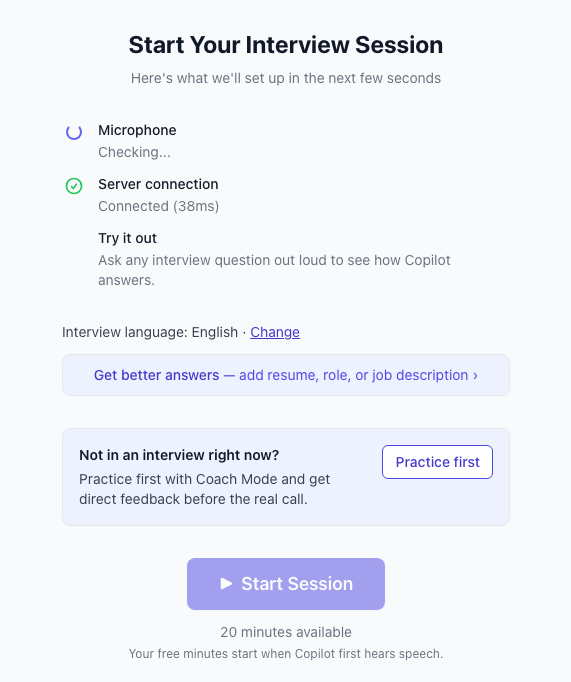
On Free, Copilot starts with your microphone. During the session, Share Interviewer Audio adds your call tab in Chrome or Edge on a computer.
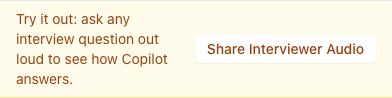
For a browser call, use that control, choose the tab containing the call and enable its audio in the source chooser. Return to the call and ask another participant to speak. Look for their actual words in the transcript before requesting guidance.
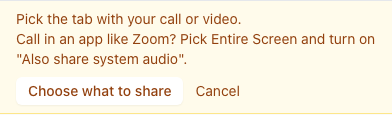
For a desktop-call system-audio route, use the documented Chrome entire-screen audio path for the operating system and browser version above. Do not select an unrelated browser tab and expect it to carry the desktop application's sound. Repeat the check after changing the route.
Can it hear both the interviewer and me?
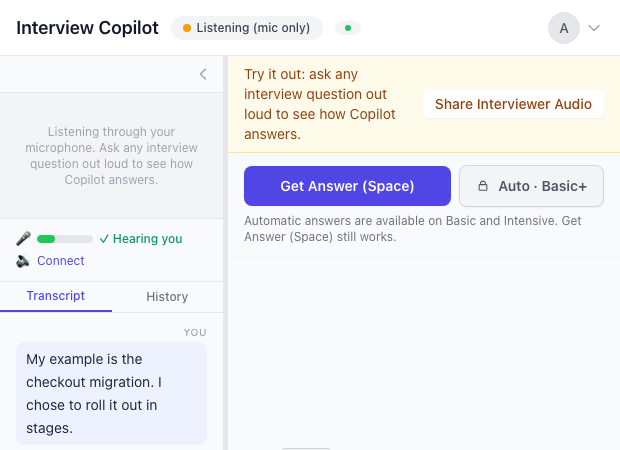
Your microphone and the interviewer's audio are separate inputs; on Free, Web Copilot starts with the microphone and Share Interviewer Audio adds the call tab during the session. On any plan, test each input: say a short sentence yourself, then ask the other participant to say a different one. Hearing your own sentence does not prove interviewer audio is connected; hearing the interviewer does not complete the microphone check.
Use this writer-created two-sentence rehearsal: say “My example is the checkout migration.” Ask your partner to say “Why did you choose that sequence?” Check each sentence separately, then request an answer to the question.
The Mac download page specifically documents Prep Notes capturing the interviewer's system audio. Neither an input test nor that statement should be treated as a guarantee of a complete, separately labelled two-person transcript. Verify the behavior you need in your actual setup; this guide does not promise speaker identification or transcript export.
Where should I put the overlay?
Use the call and Copilot side by side, with the question, interviewer video and essential call controls still readable. This is a suggested arrangement, not a claim about an automatic positioning feature. Adjust the space for your screen and the tasks the interview requires.
Start with Cue me if a short reminder is enough. Use Structure it for an outline or Formulate my answer for full wording, as described in the assistant guide. If you need too much space to read a response, reconsider the format before shrinking the interview to an unusable size.
Rehearse moving between the question, the transcript and Get Answer. Web Copilot documents Space for manual requests; Prep Notes uses the Mac shortcut above. Do not assume the web key works while another application has focus. Keep the arrangement usable when you need to read a prompt or demonstrate your own work.
Frequently asked questions
Can I use Interview Copilot on a Mac without installing it?
Yes. Web Copilot is a browser option. Check the supported call-tab or entire-screen audio route for your browser, operating system and call location.
Does Prep Notes run on Intel Macs?
No. The live download page requires Apple silicon and macOS 13 or later. The browser route has separate audio requirements.
What browser, operating system and Mac app do I need?
For browser-tab audio, use Chrome or Edge on a computer. Chrome entire-screen audio works on Windows, or on macOS 14.2 or later with Chrome 141 or later. The Prep Notes Mac app requires Apple silicon (M1 or later) and macOS 13 Ventura or later.
Is the Mac app a separate subscription?
No. Prep Notes uses the same Interview Copilot account, plan and Copilot minutes, and is included on every plan. See pricing for the allowances.
Does the setup prove the answer is correct?
No. Audio capture and answer quality are different checks. Inspect personal details, respond in your own words and follow the interview's rules.
Try Copilot free. Free includes twenty Copilot minutes and twenty Coach minutes monthly; use AI interview practice for rehearsal before the call.